
Grid
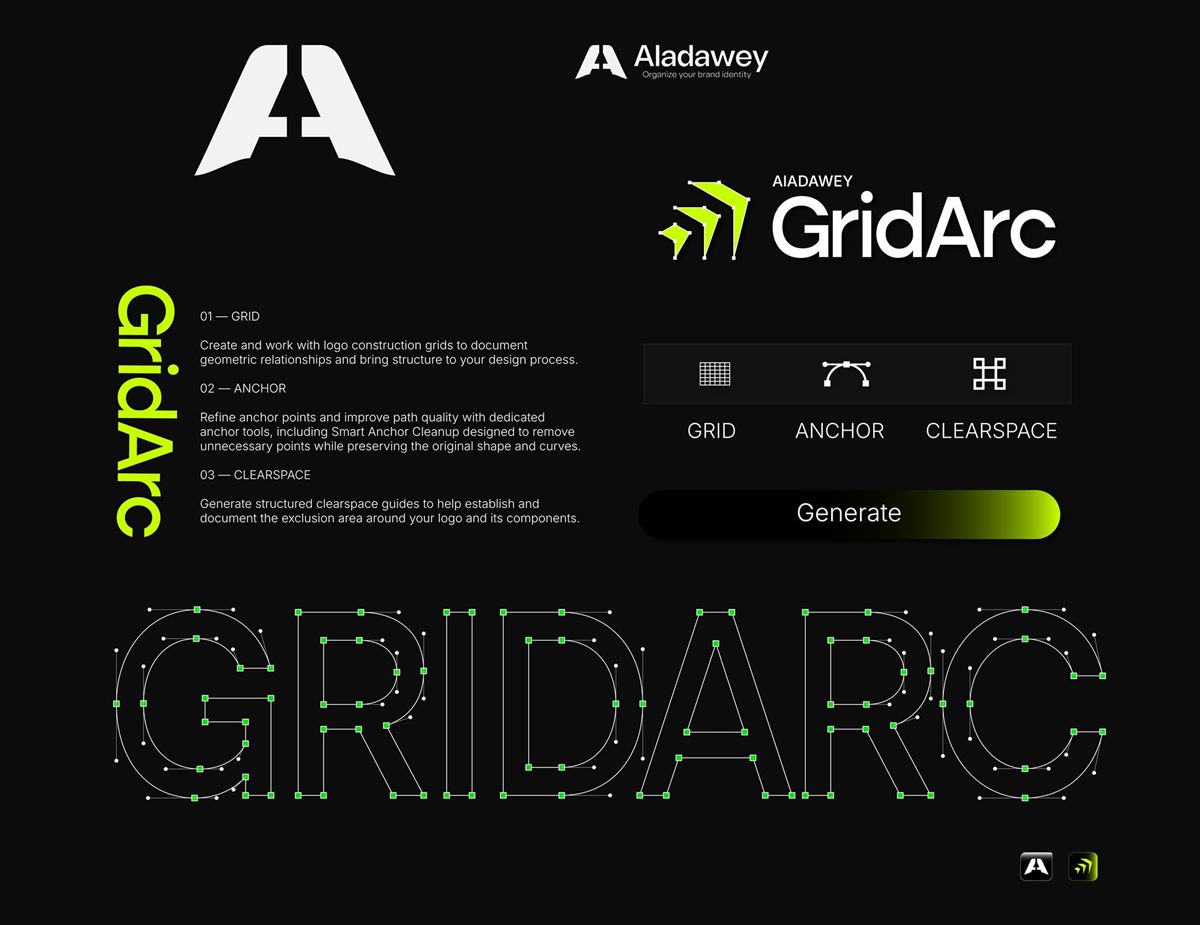
Create and work with logo construction grids to document geometric relationships and bring structure to your design process.

01 · Logo Construction
Bring structure to every logo you build.
Create construction grids, clean up anchor points and generate clearspace guides — without leaving Adobe Illustrator.
The purchase link is not available yet — the button opens our booking page.
Overview
GridArc is a dedicated grid and construction tool for logo and identity design. It works on your current selection or active artboard inside Illustrator, with no special file setup.
The problem
Building construction grids line by line is slow and hard to repeat across concepts.
Unneeded points make curves harder to edit and paths less clean.
An exclusion zone that is not documented is hard to apply consistently.
The solution
GridArc generates the grid, cleans the anchors and builds the clearspace guides from the artwork you select, so the geometry behind the logo is visible and documented.
Features
Create and work with logo construction grids to document geometric relationships and bring structure to your design process.
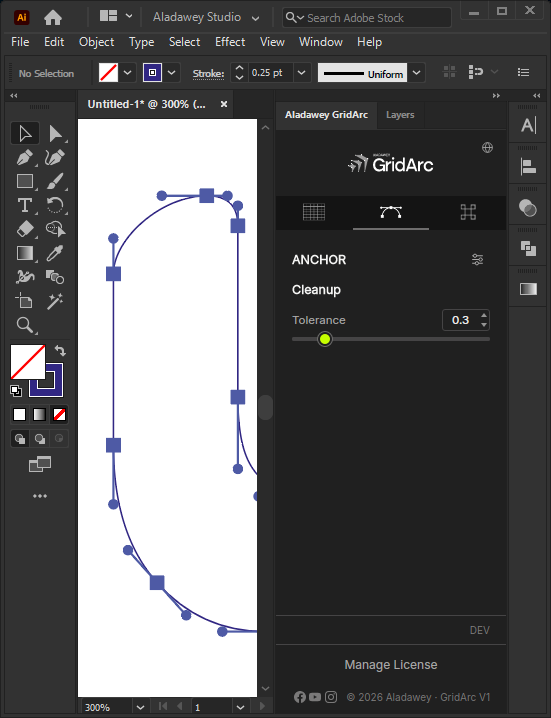
Refine anchor points and improve path quality with dedicated anchor tools, including Smart Anchor Cleanup, designed to remove unnecessary points while preserving the original shape and curves.
Generate structured clearspace guides to help establish and document the exclusion area around your logo and its components.
In action
Real interface screenshots and screen recordings — no mock-ups of features that do not exist.
How it works
In Illustrator choose Window › Extensions › Aladawey GridArc.
GridArc works on the current selection or the active artboard.
Switch between Grid, Anchor and Clearspace and adjust the settings.
Create the grid, cleanup or clearspace guides on your artwork.
Workflow
GridArc is the first step: it gives the logo its documented structure before it is presented, specified and delivered.
Compatibility
Pricing
Pricing and licensing for GridArc have not been announced yet.
Licensing details will be published here with the purchase link.
Reviews
No reviews of GridArc yet. Used it? Share your experience.
FAQ
Adobe Illustrator CC 2019 or newer.
Yes, both.
No. GridArc works on the current selection or the active artboard, with no naming convention required.
Pricing has not been announced yet. Book a call if you would like to hear when it is available.
Ecosystem


Brand Guidelines
Generate a full brand guidelines document from your logos, colours and type, with 24 page types and five templates.
Brand Identity Export & File Delivery
Organize, prepare and export brand identity files into structured, professional deliverables.
Construction grids and logo systems for Adobe Illustrator